
Media
This section will cover all the settings you need to know about media.
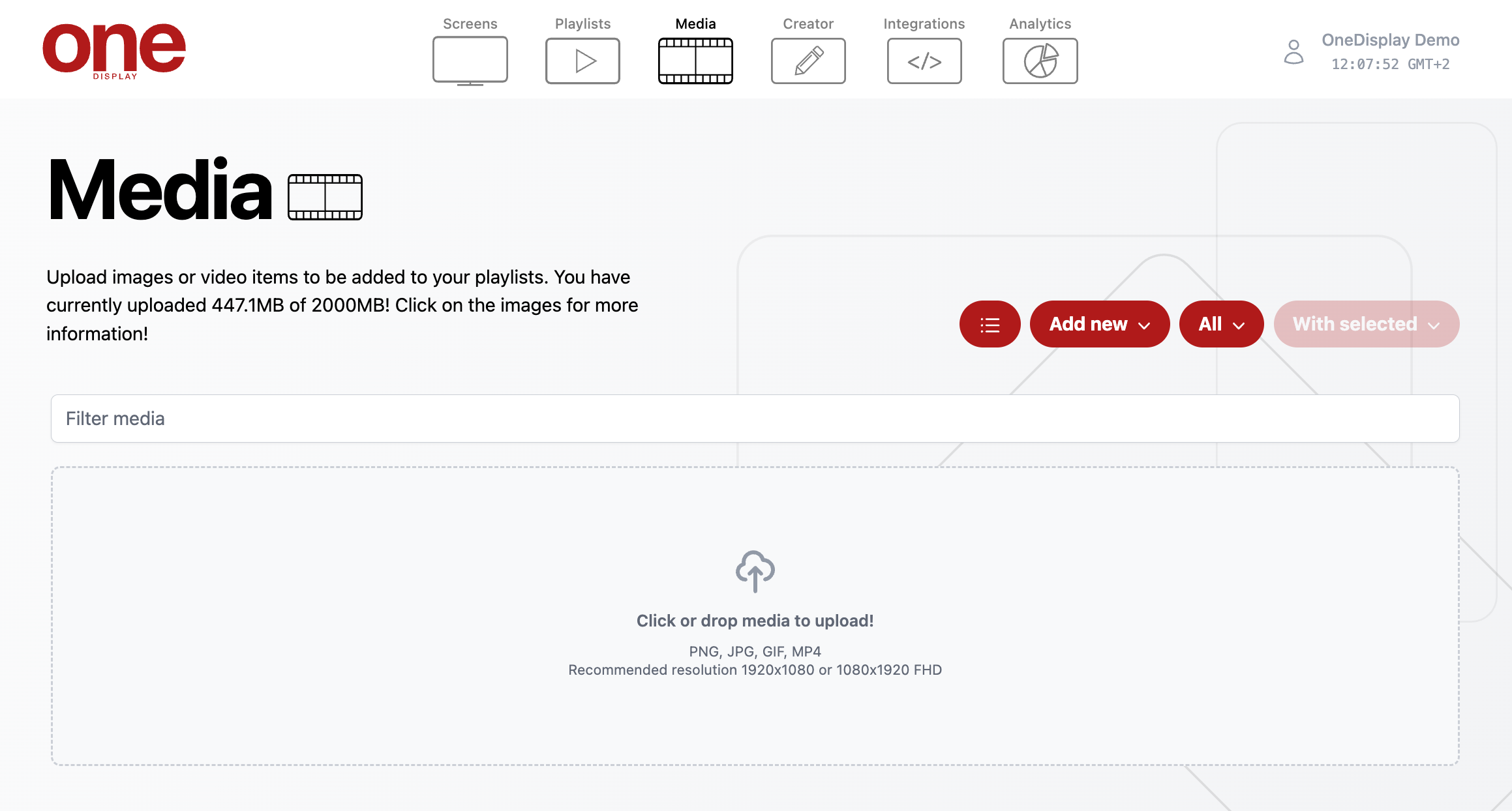
- Click on Media in the navigation bar.
- All your content is stored here in your media library. These items are to be placed within your playlist. Media items can either be videos, images or web links. You can also add folders to organise your content.
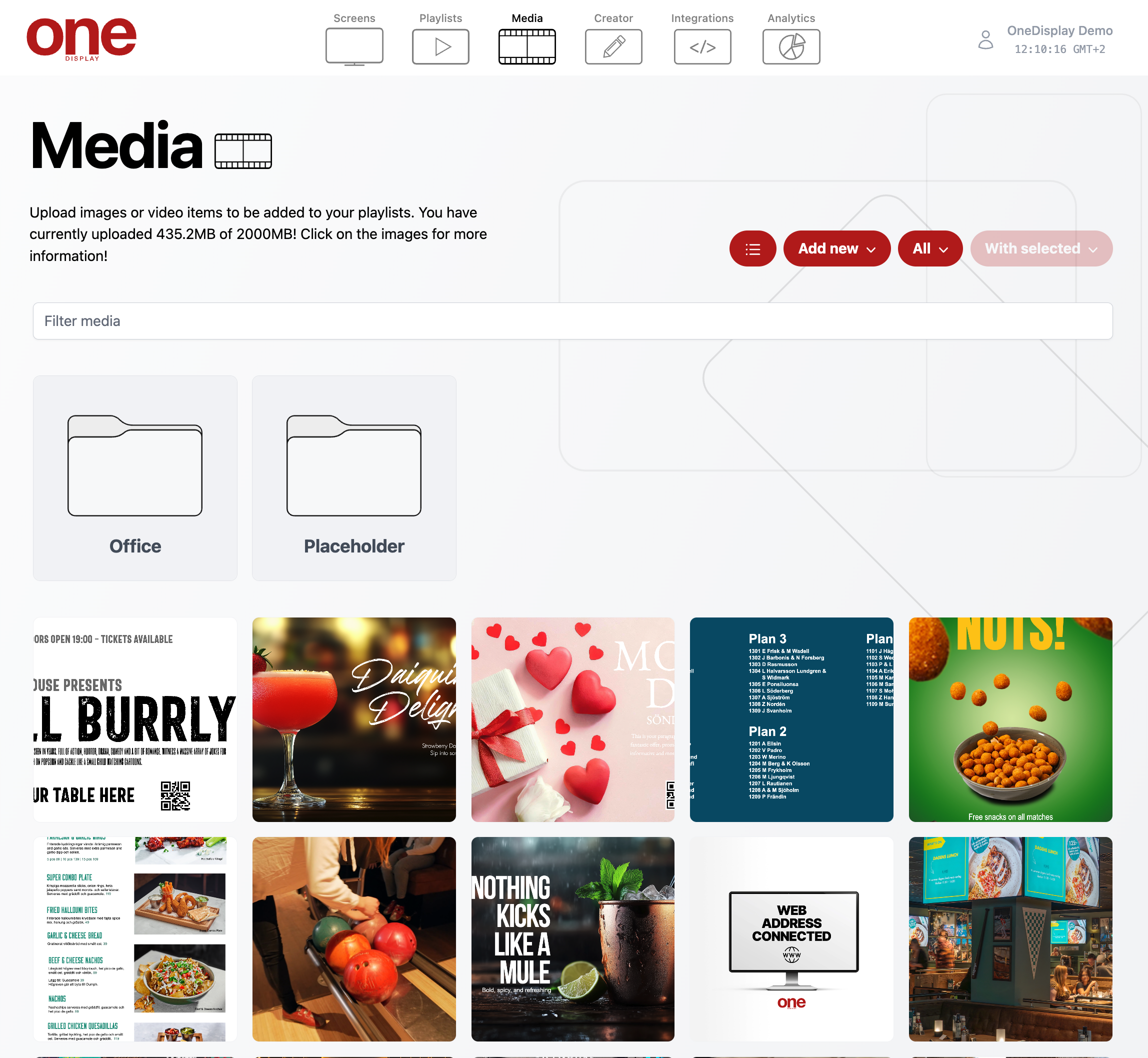
Media Menu
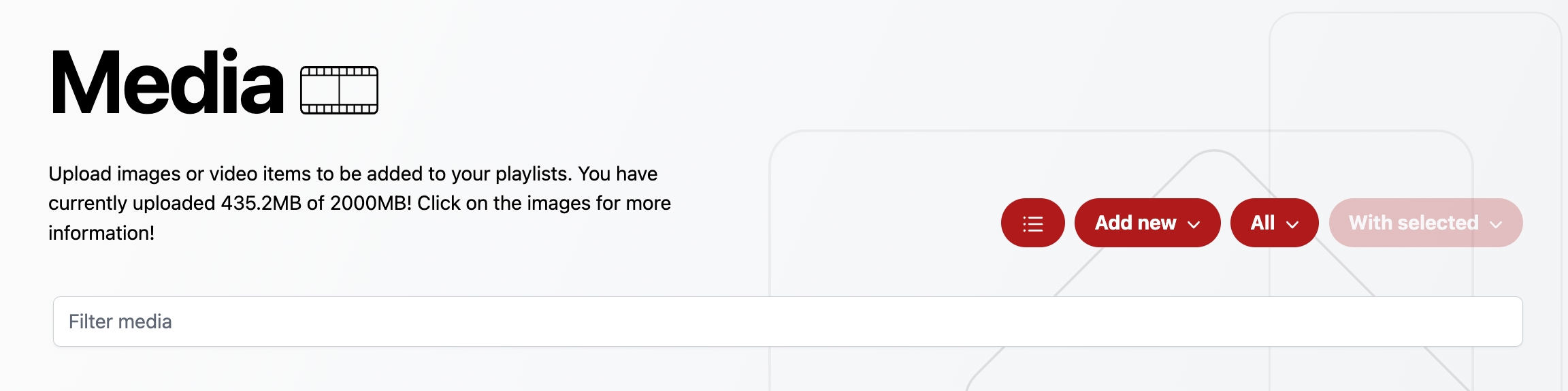
- The message under the Media title displays how much disk space you have used and how much you have available.
- To display an alternate view click on the icon.
- To filter which media you wish to see, either type the name of the media into the Filter media box, or use the dropdown button labelled All.
Add Media
- Click on Add new. A dropdown will appear. You can choose between File, External link or Folder.
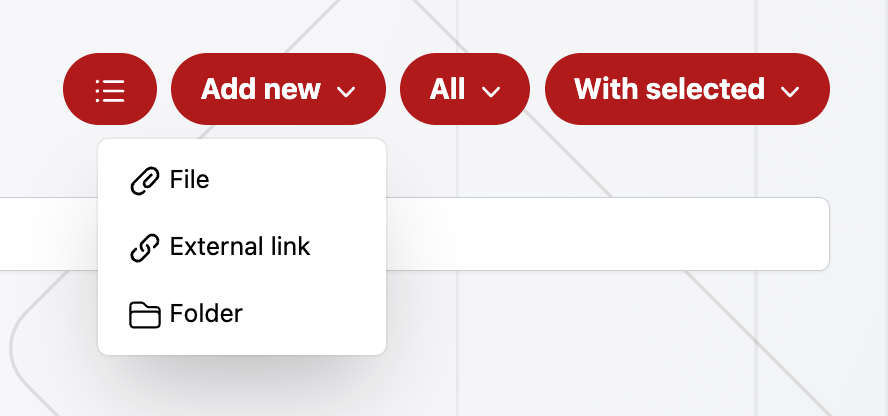
Add Files
- Files are either images, videos, or GIFs. Click on File.
- A dropdown box will appear. Click on the box. This will open up a finder window for you to locate your content on your device. Alternatively, locate your content on your device and drag and drop content into the dropdown window. The content will then appear in your library. Depending on the file size it could take a few seconds for it to appear.
- Hover over any media item and it will show you the name and file size.
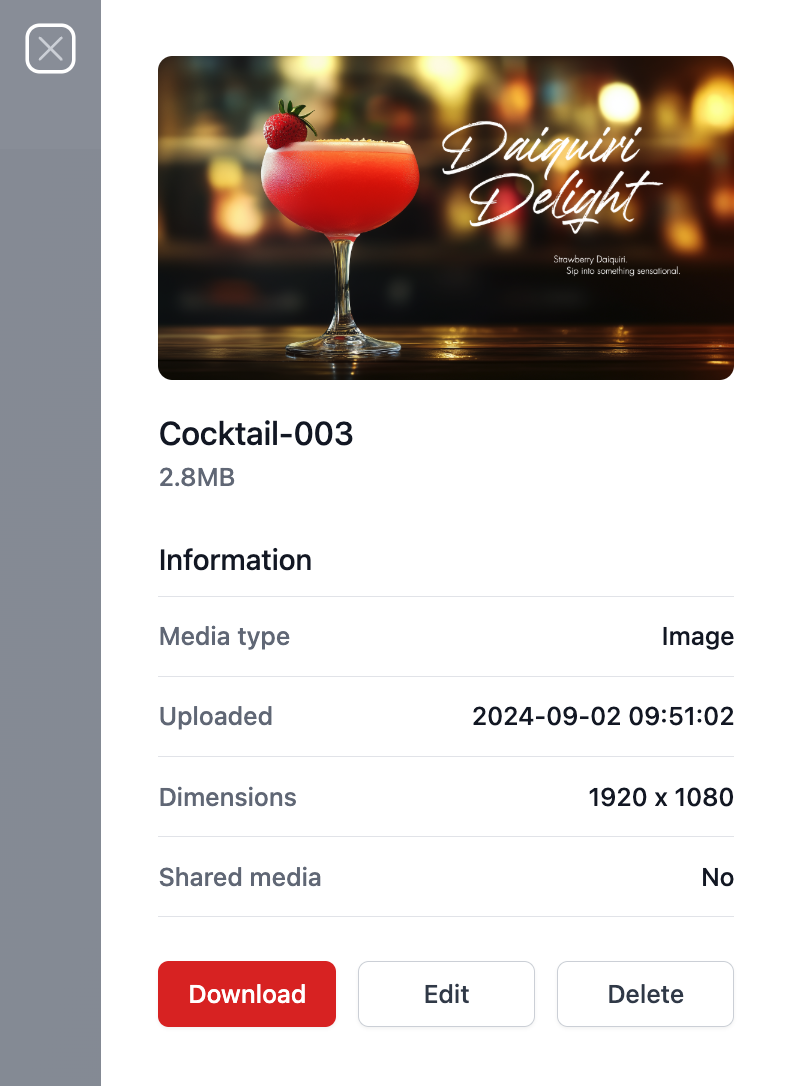
- Click on a media item for it to display further details. You can download the content, edit the name or delete the file.
Add External Link
- External Links are website address links. Click on External link from the Add new dropdown button.
- In the popup menu that appears enter the media URL. Click on Save URL.
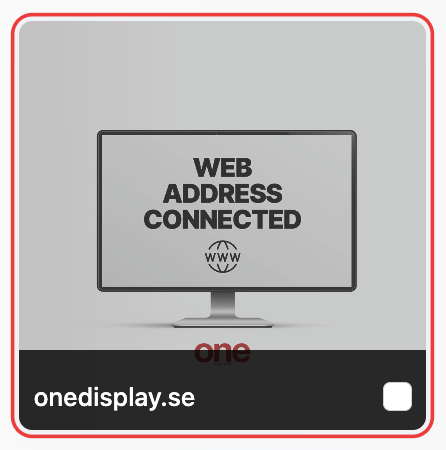
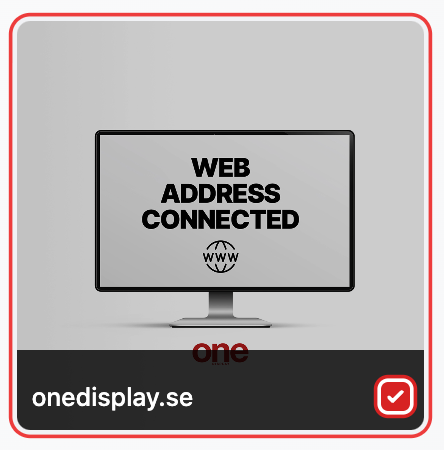
- To view details of your link click on the item displaying WEB ADDRESS CONNECTED.
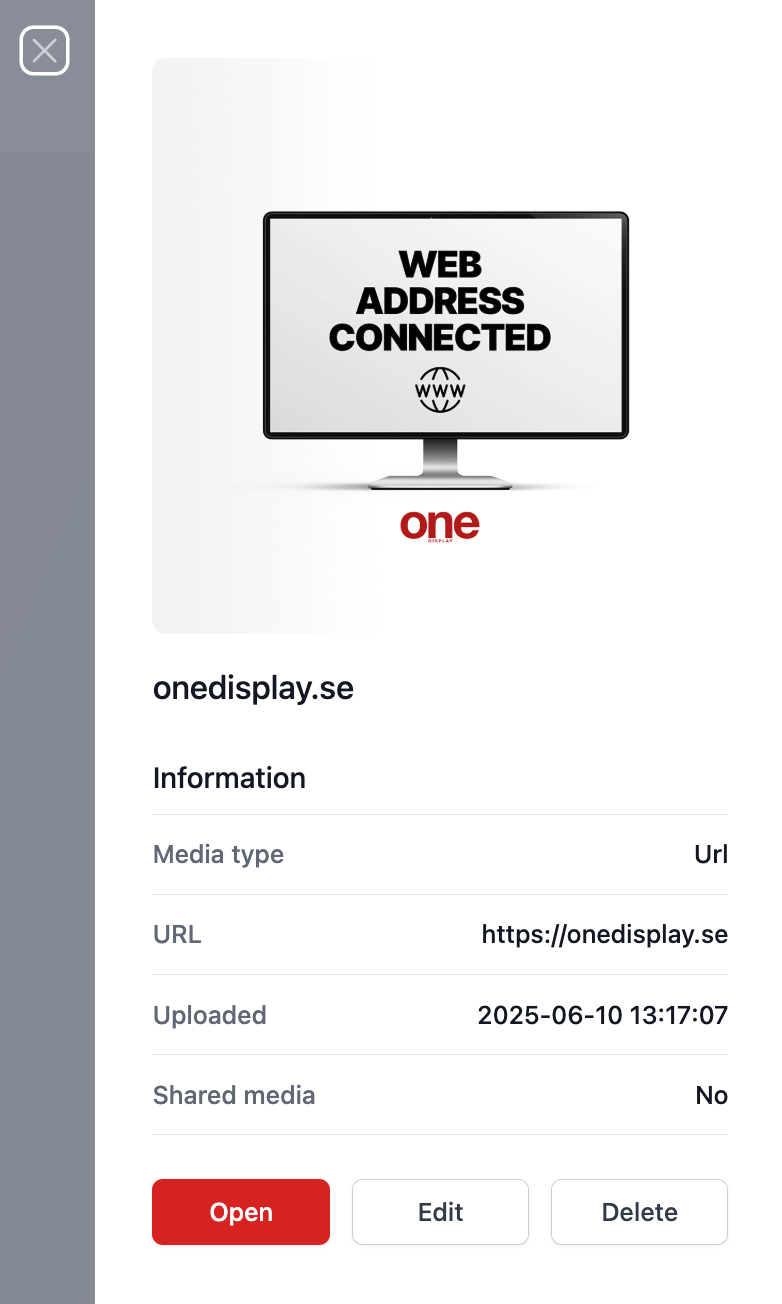
- The menu that appears will display various details. You can press Open to view the web page, Edit the web address or Delete the item.
Add Folder
- Folders are used to organise your content into sub-directories. Click on Folder from the Add new dropdown button.
- Enter Folder name and and Click on Save folder.
- To add media to a folder click on the checkbox of any media item.
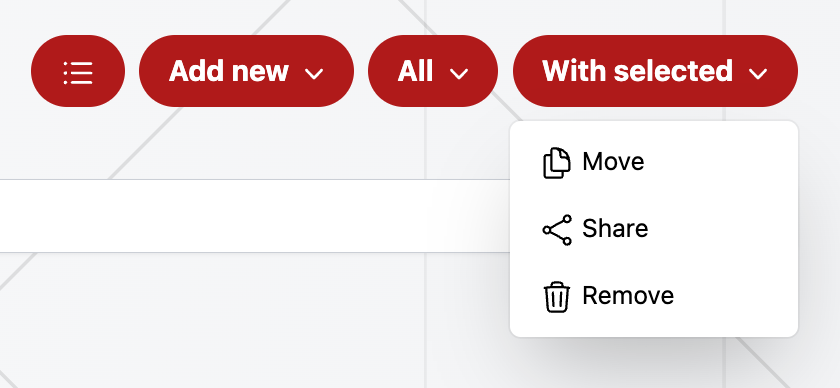
- Click on the With Selected button. From the dropdown choose Move.
- From the popup that appears locate the newly made folder from the dropdown menu and click Move. Your file will now be located in that folder.
Share Media items
- If you have a parent account controlling other child companies you can share your content. If you don’t this option will be greyed out.
- Click on the checkbox of any media item.
- Click on the With Selected button. From the dropdown choose Share.
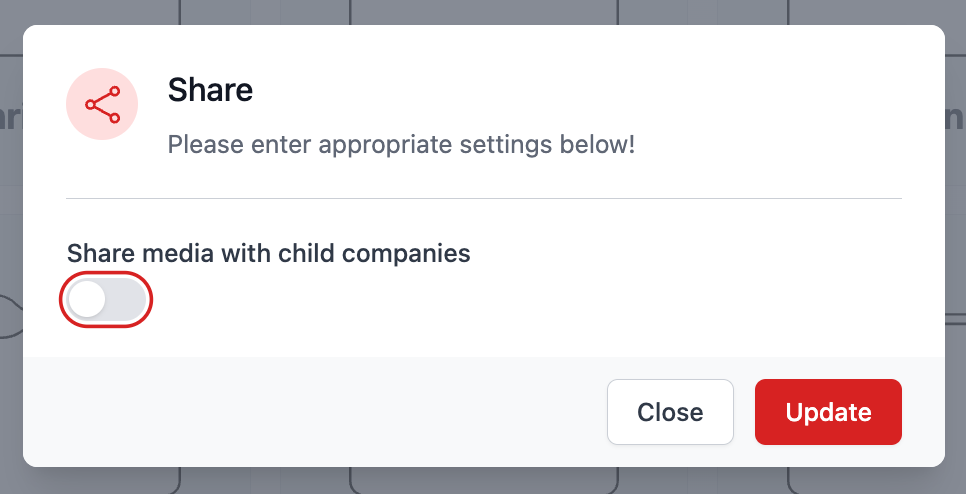
- From the popup menu that appears, use the Share media with child companies toggle to view your child companies. You can either tick the Share with all checkbox or individually select companies from your list via the checkbox next to their name. Click Update.
- To share a folder click the Edit button on hovering a folder. If you have a parent account the Share media with child companies option will be visible. Follow the same process as above.