Samsung installation
This section will cover all the settings you need to know about the Samsung setup and app installation.
Device settings
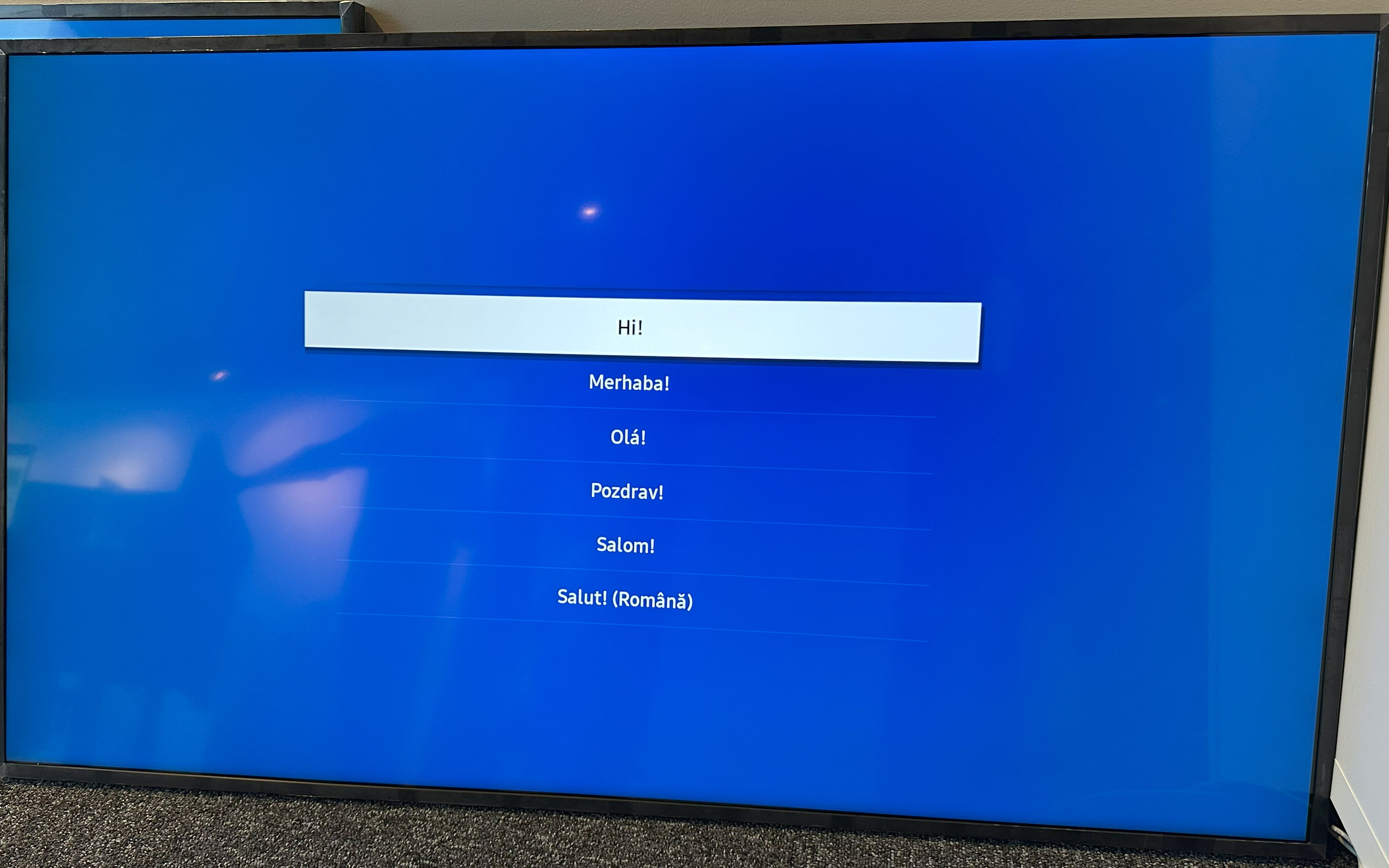
Start by selecting a language
- Start by selecting your preferred language
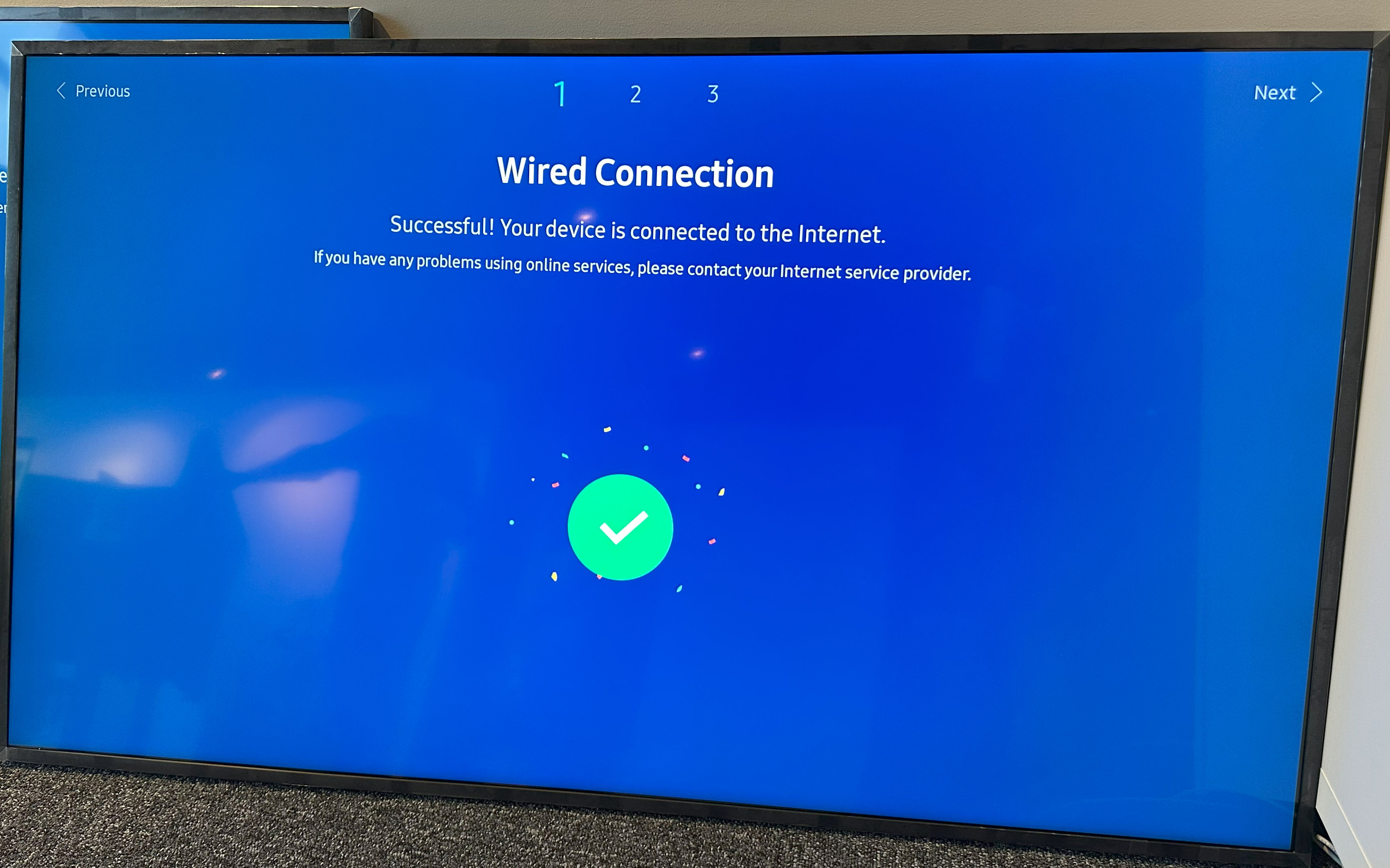
Check network connection
- Depending on your location you may or may not have access to a wired internet connection
- Select WIFI and access your SSID by finding it in the list and enter your password.
- Using a wired connection is almost always preferred.
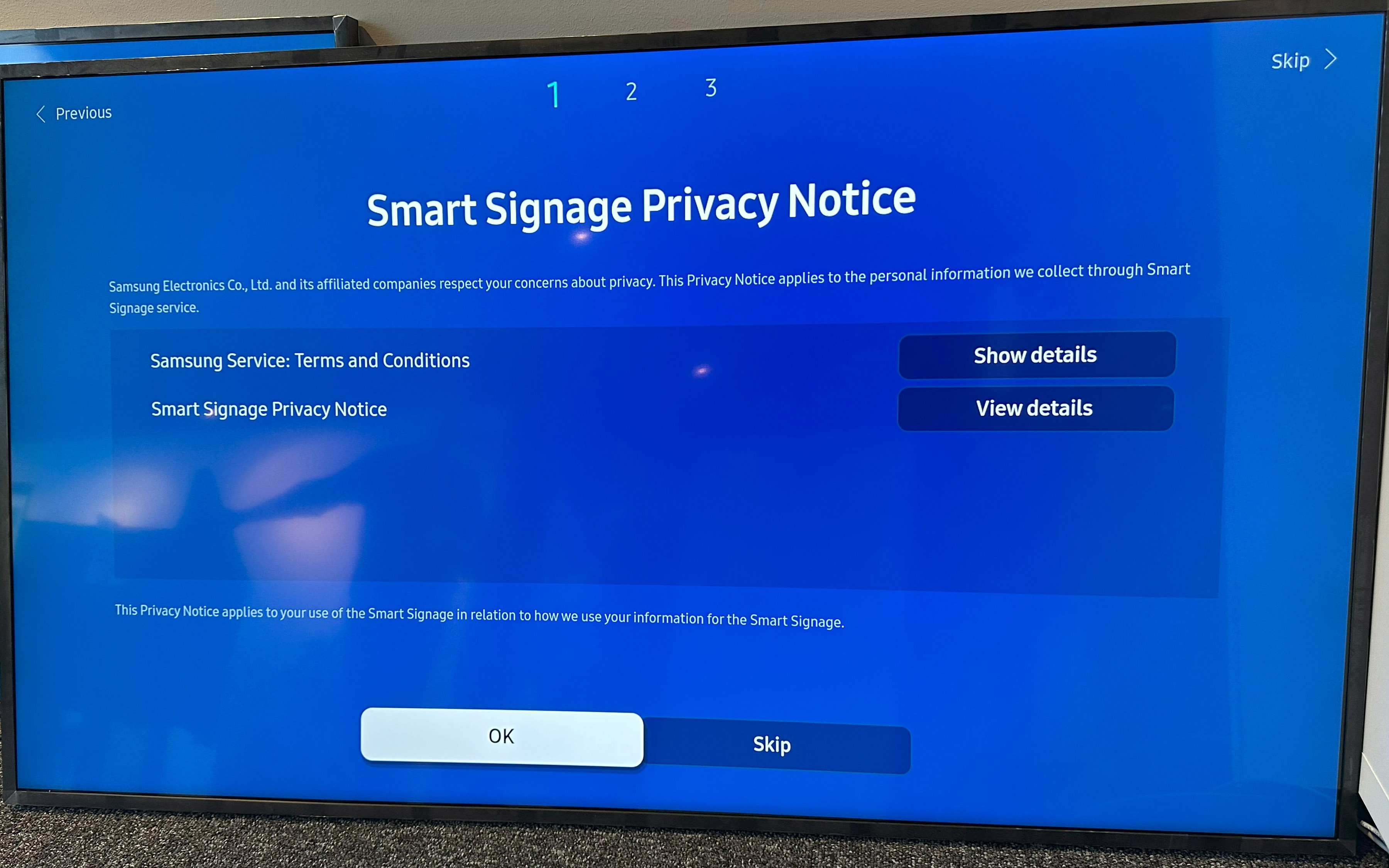
Smart signage privacy notice: Skip
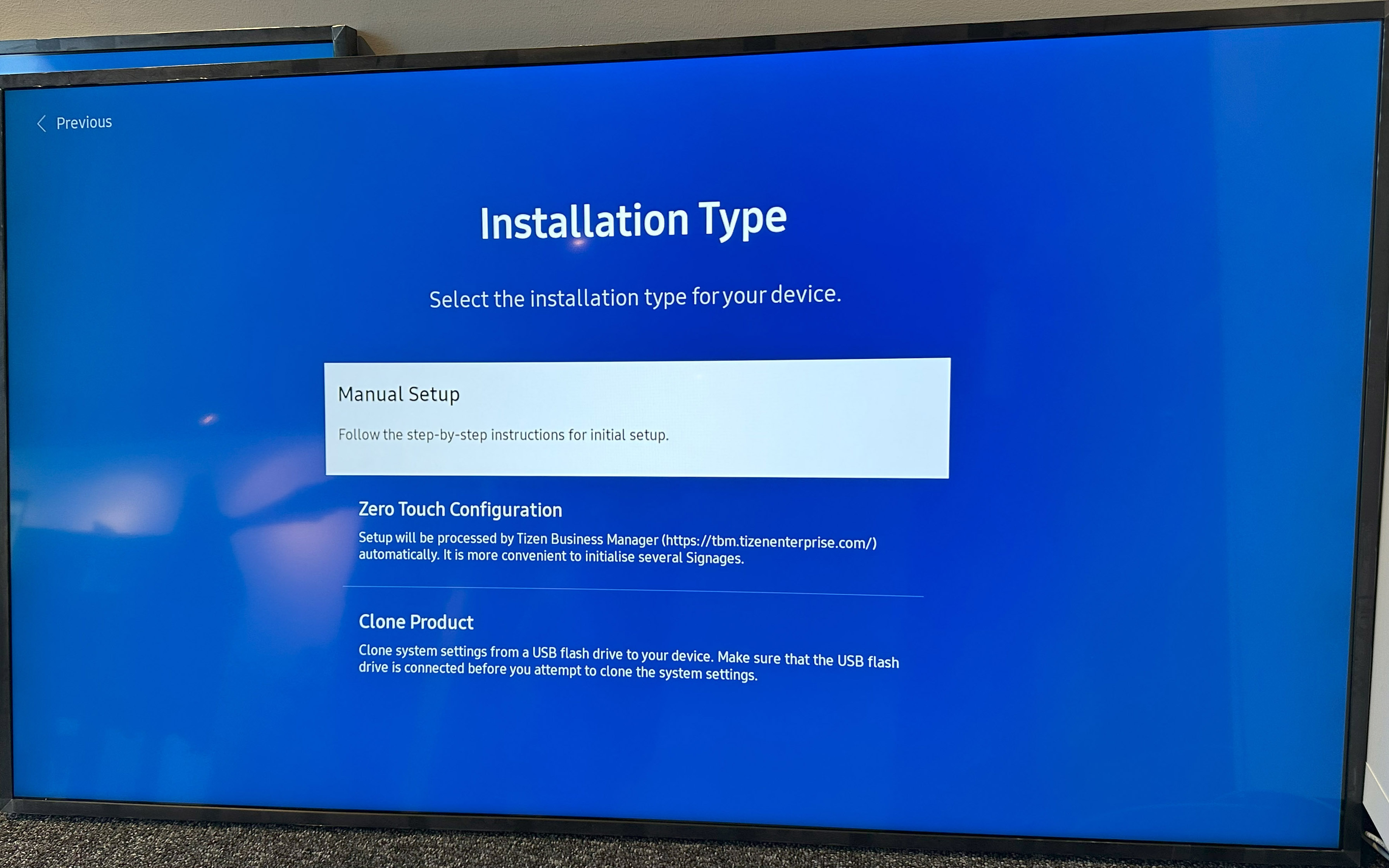
Installation type: Manual Setup
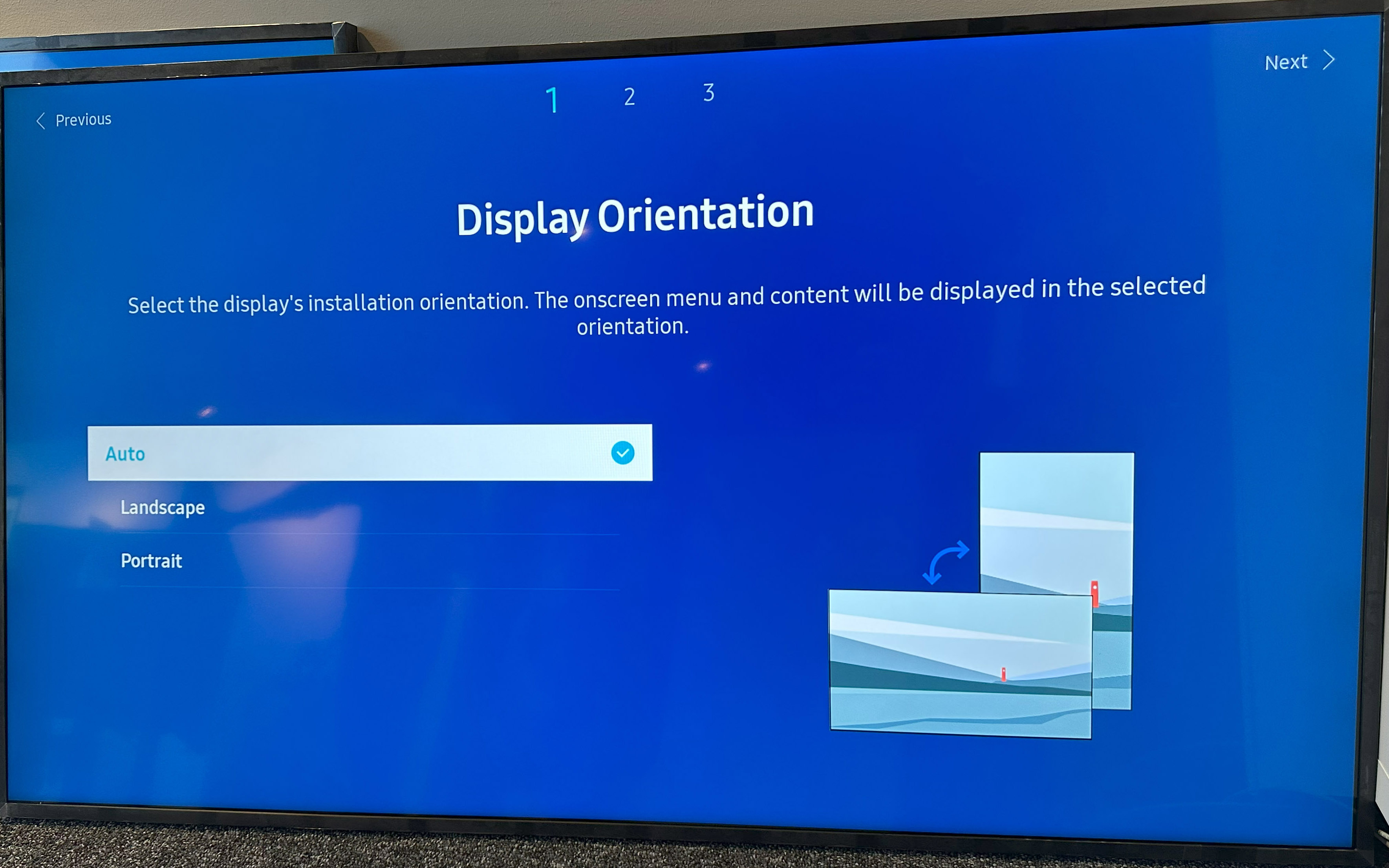
Display Orientation: Auto
- The device will automatically use the orientation based on sensors within the screen if set to Auto.
- If you know the install will be either portrait or landscape you can select that setting.
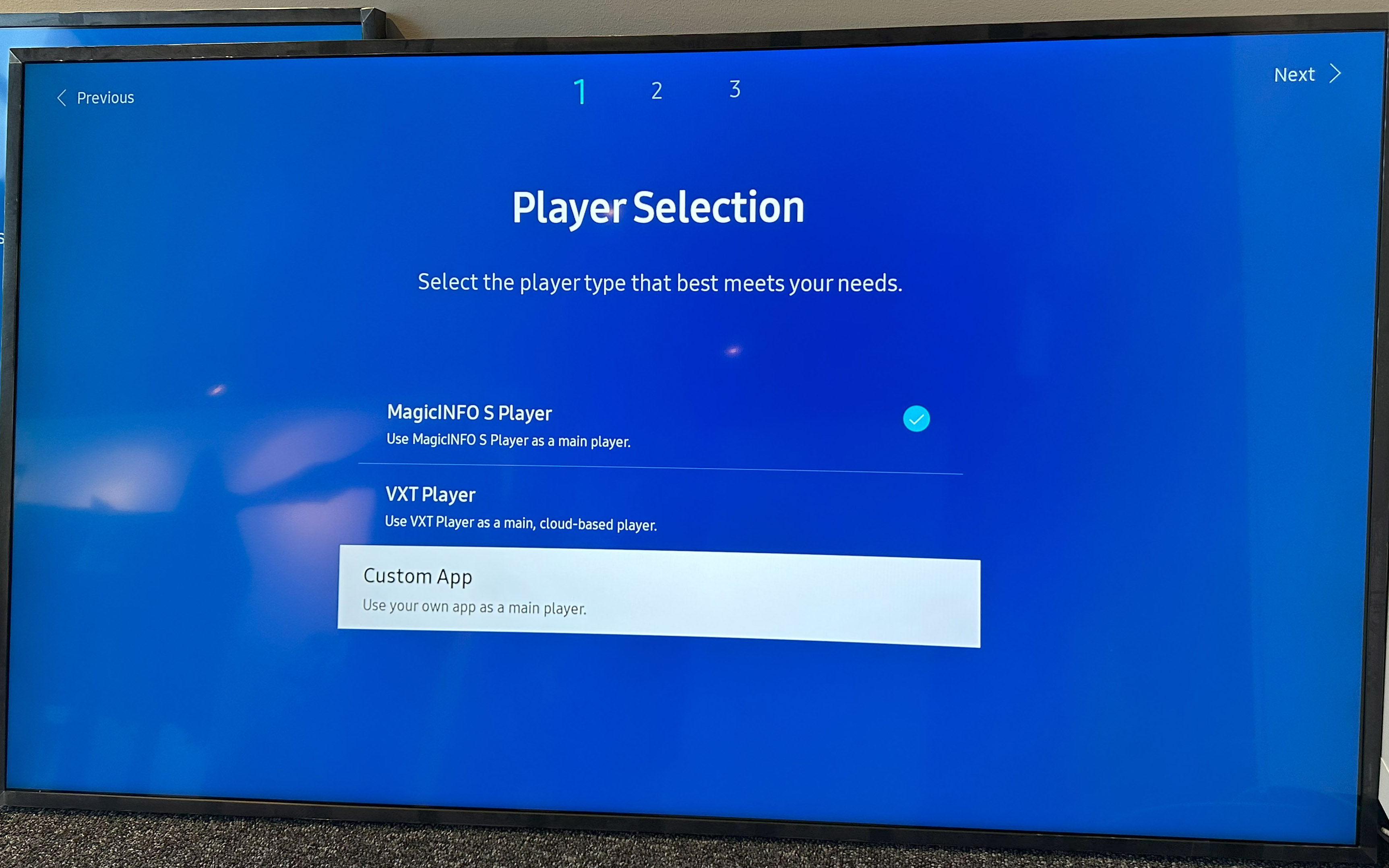
Player sellection: Custom app
- This is an important step, select Custom app to be able to install the OneDisplay app.
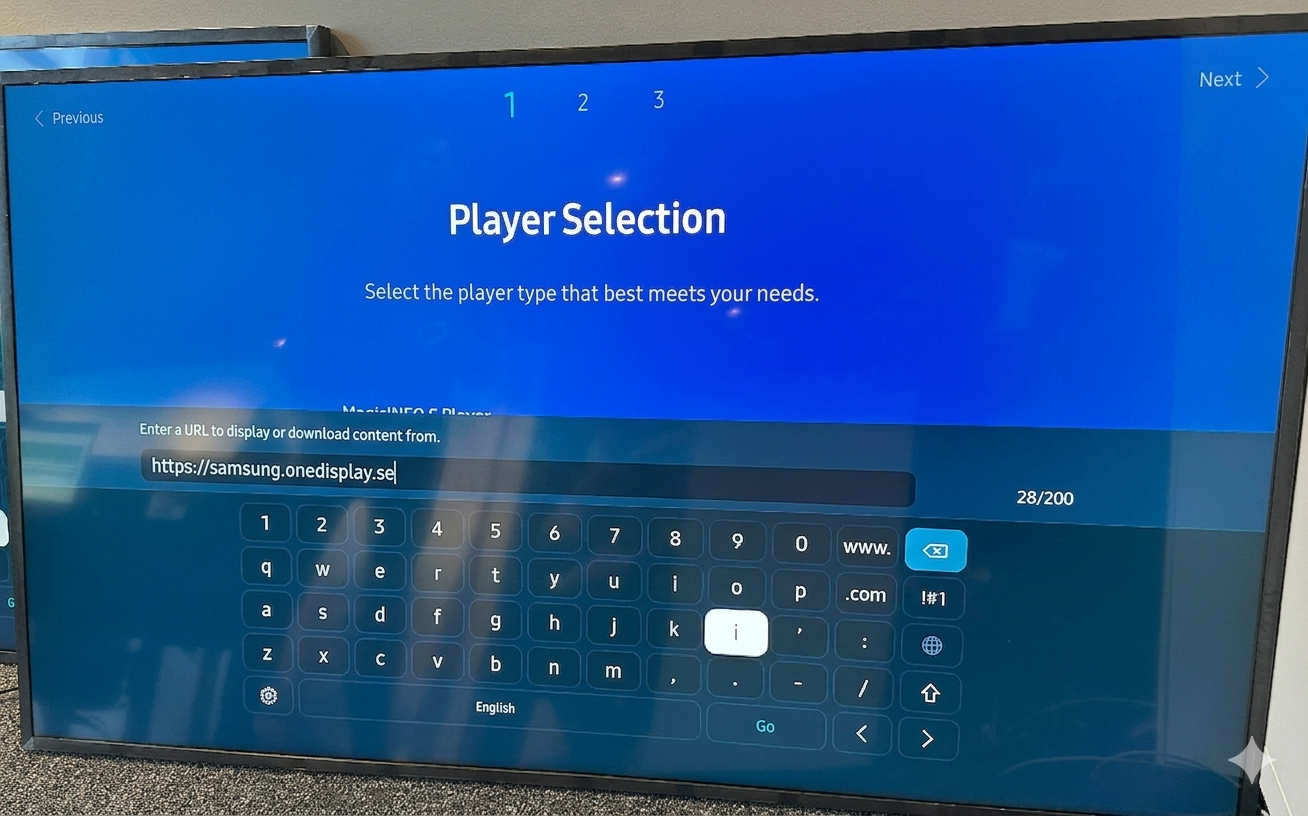
App installation
Enter URL Launcher address
- In small letters, type in
https://samsung.onedisplay.se
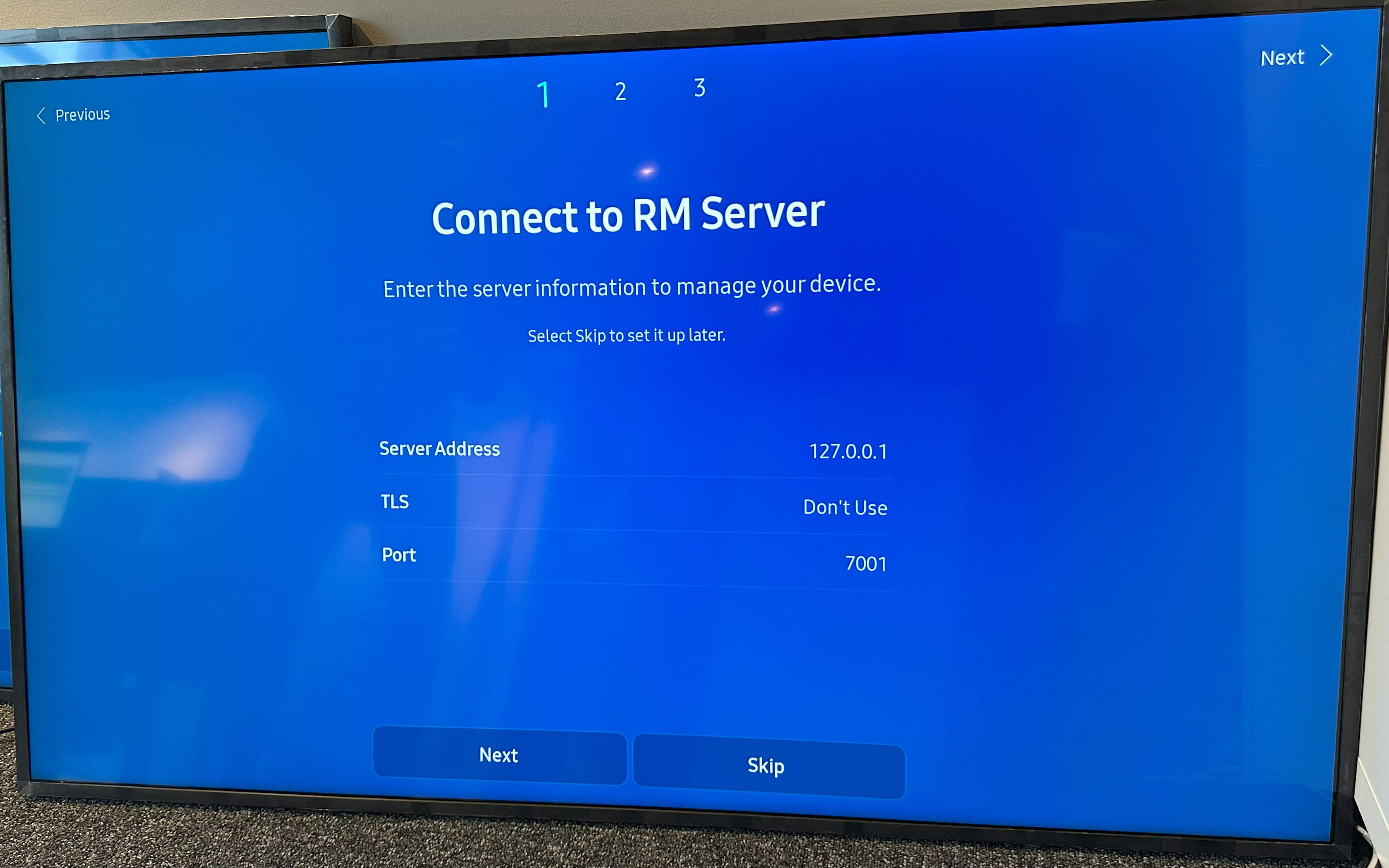
Connect to RM server: Skip
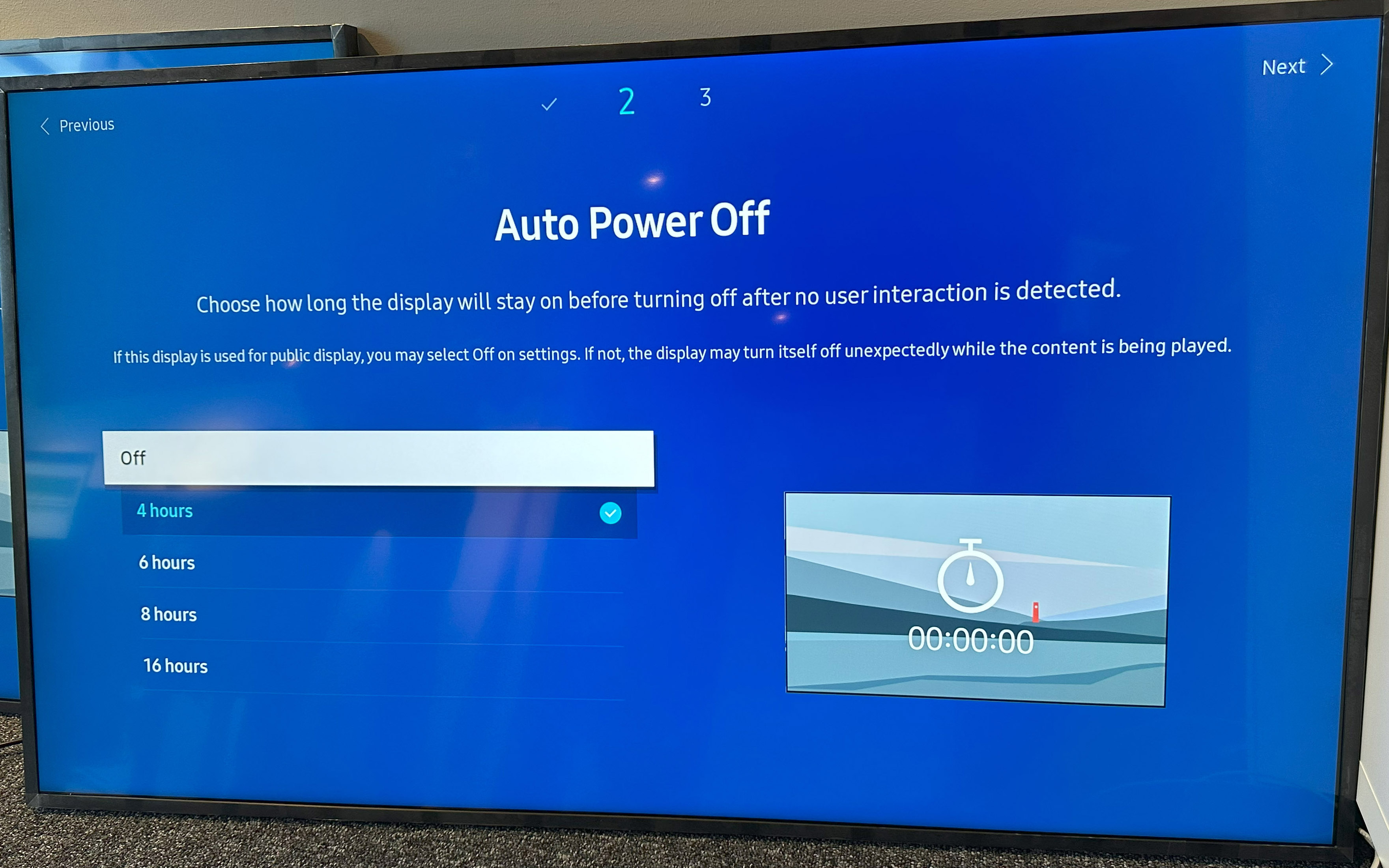
Auto power off: Set to Off
- To prevent the screen from turning black, turn off auto power off.
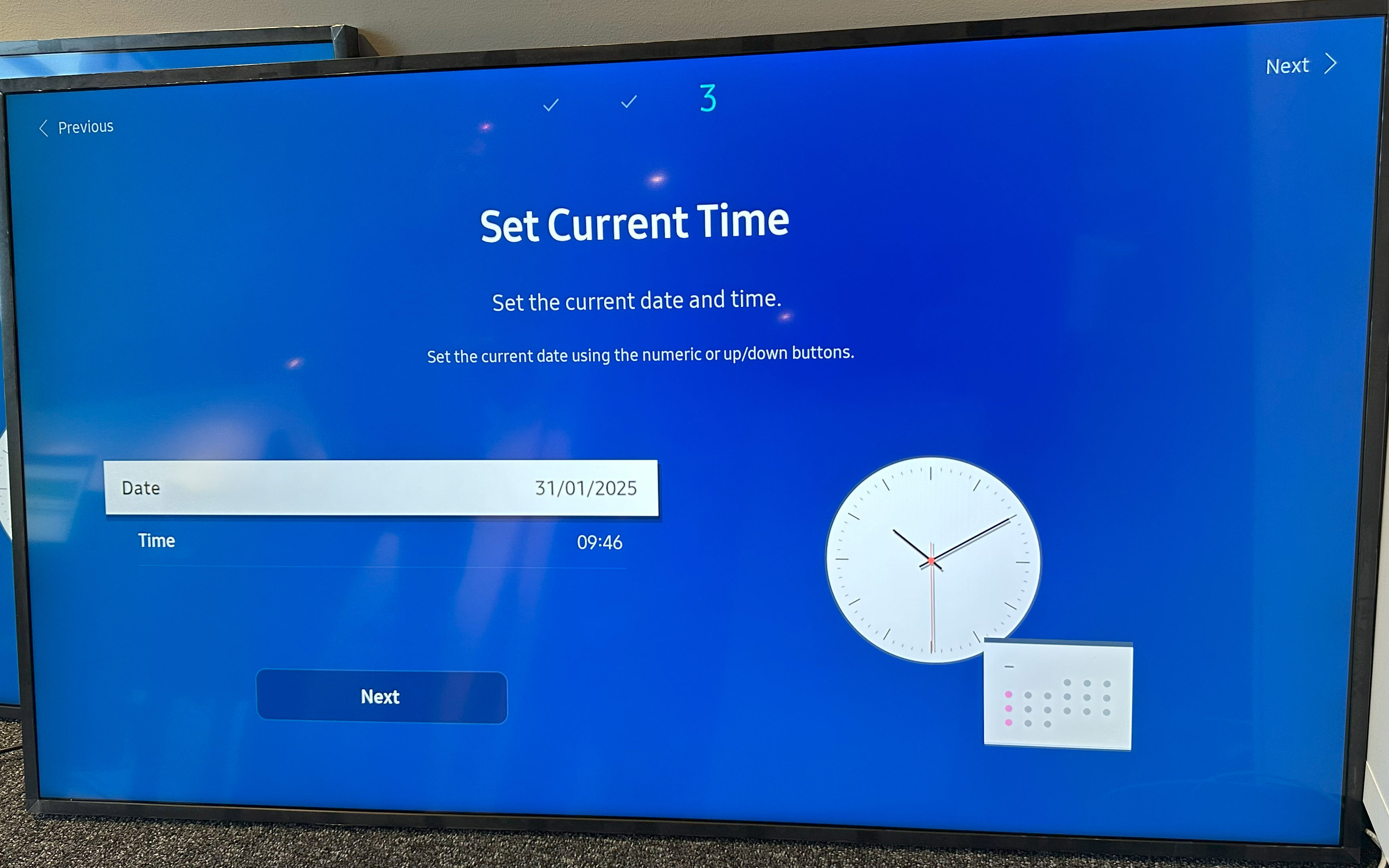
Set Current Time: Needs to be set if the TV does not do so automatically.
- The time needs to be set correctly for the app installation to succeed.
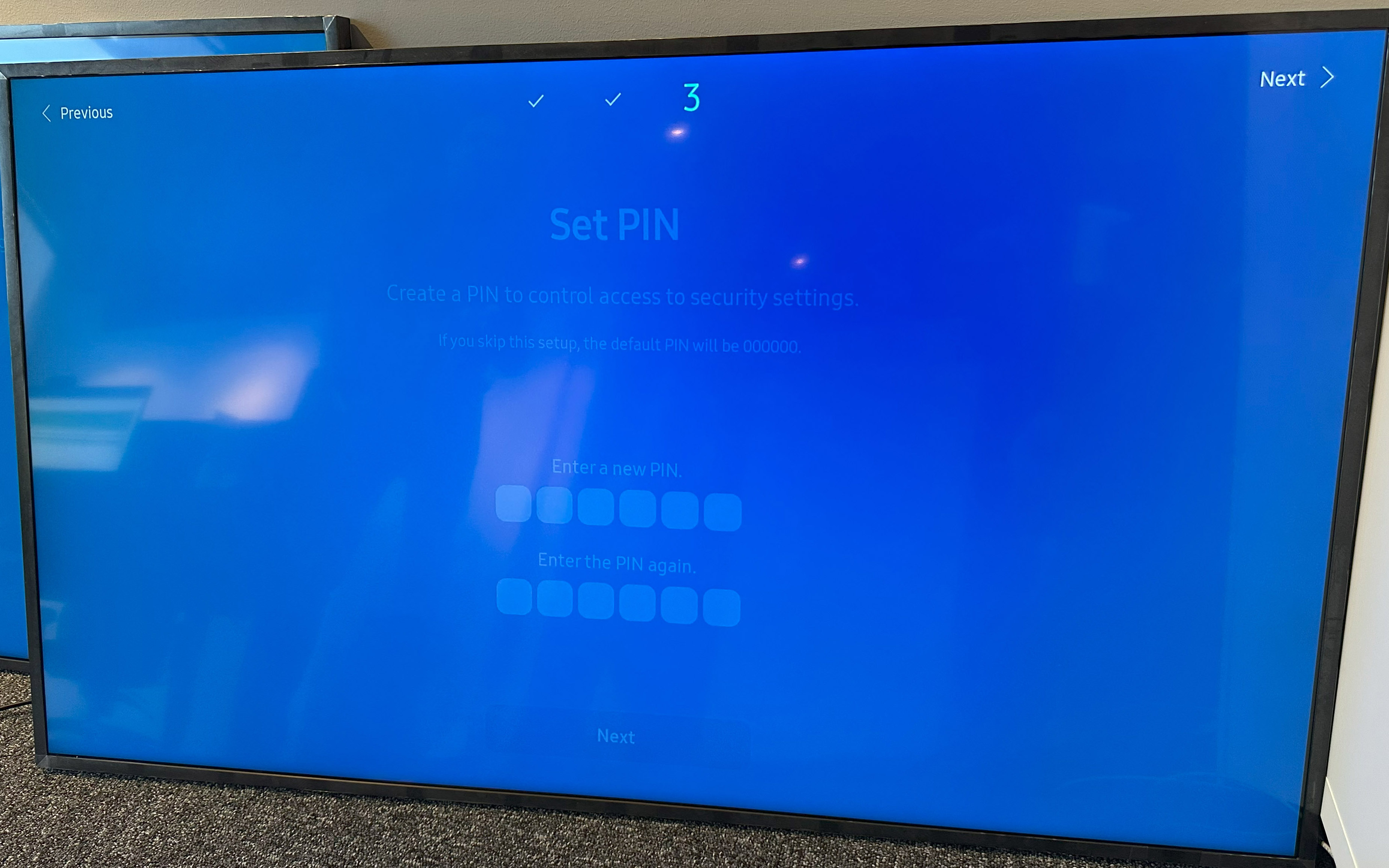
Set PIN: Skip
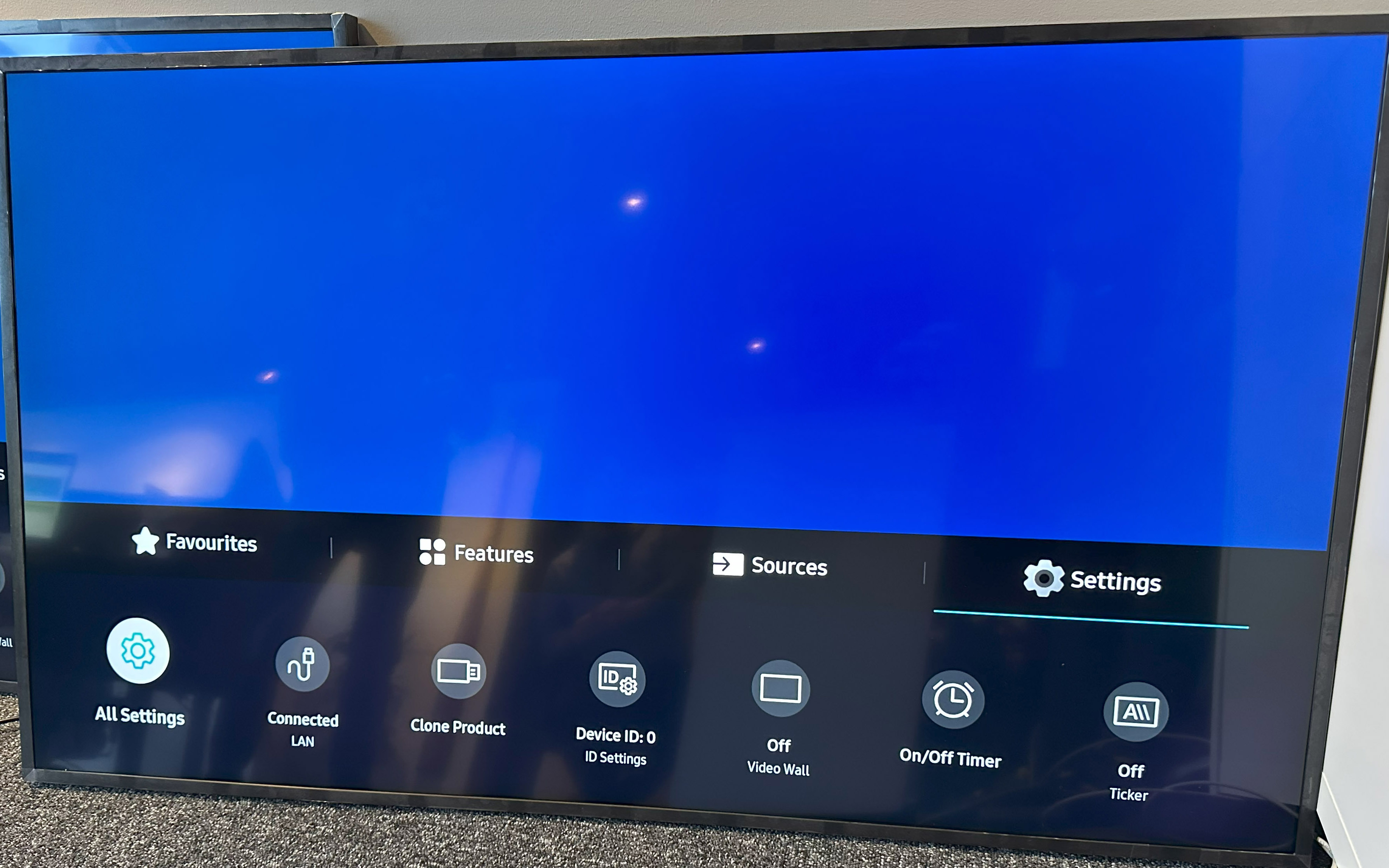
Home button on remote to get into settings.
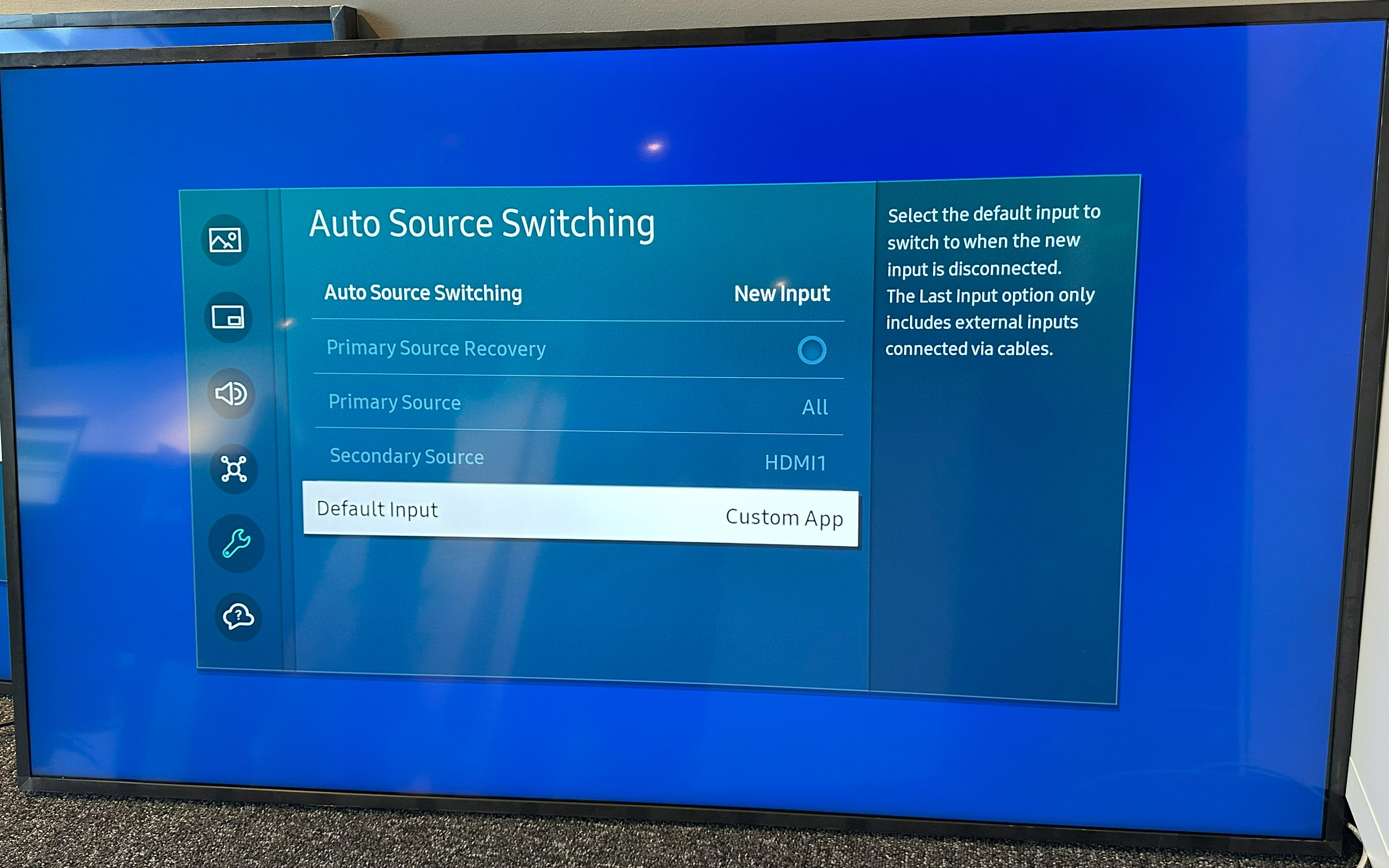
Auto source switching “New Input”. Default Input “Custom app”.
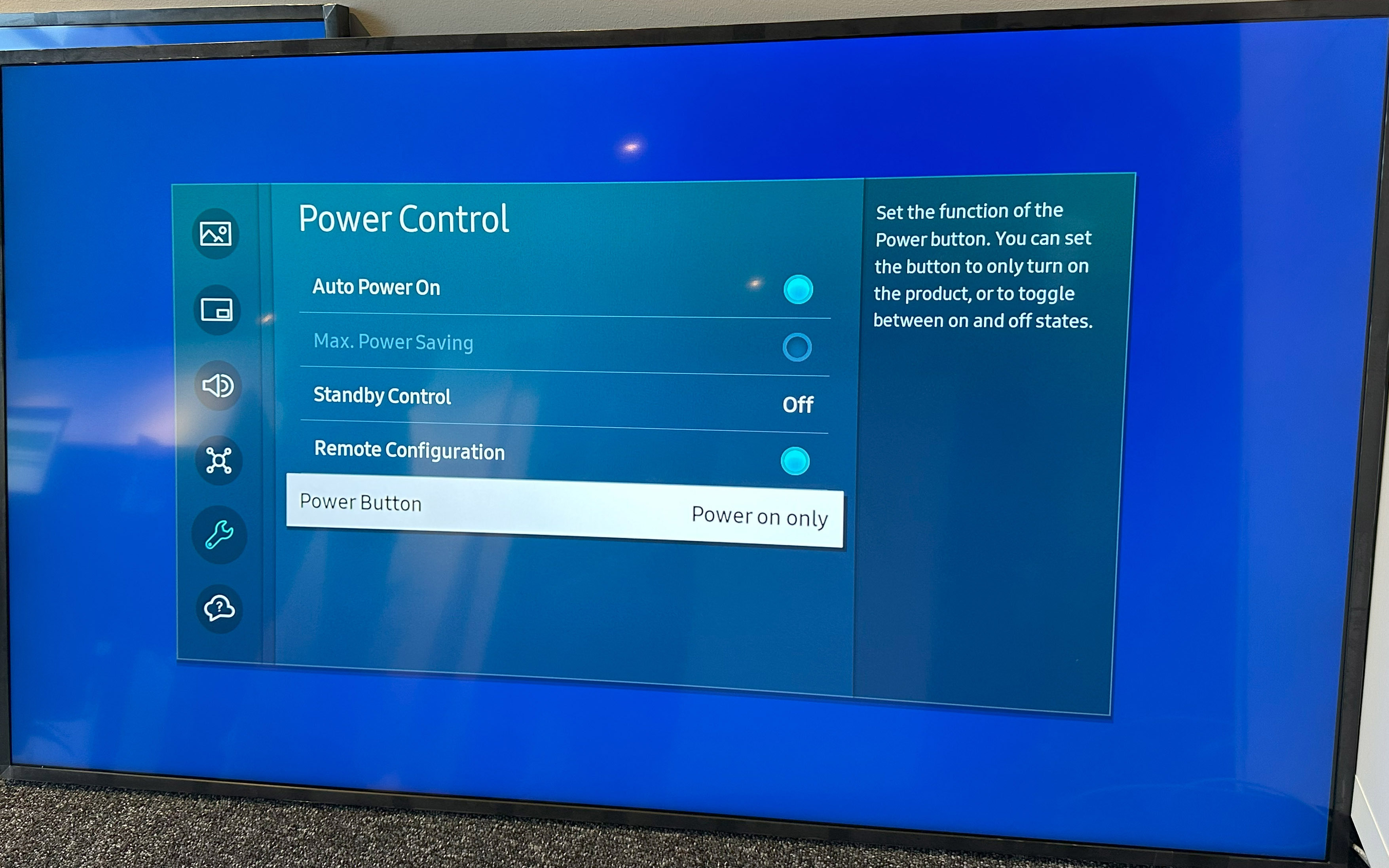
Power control
Auto power on ”checked”
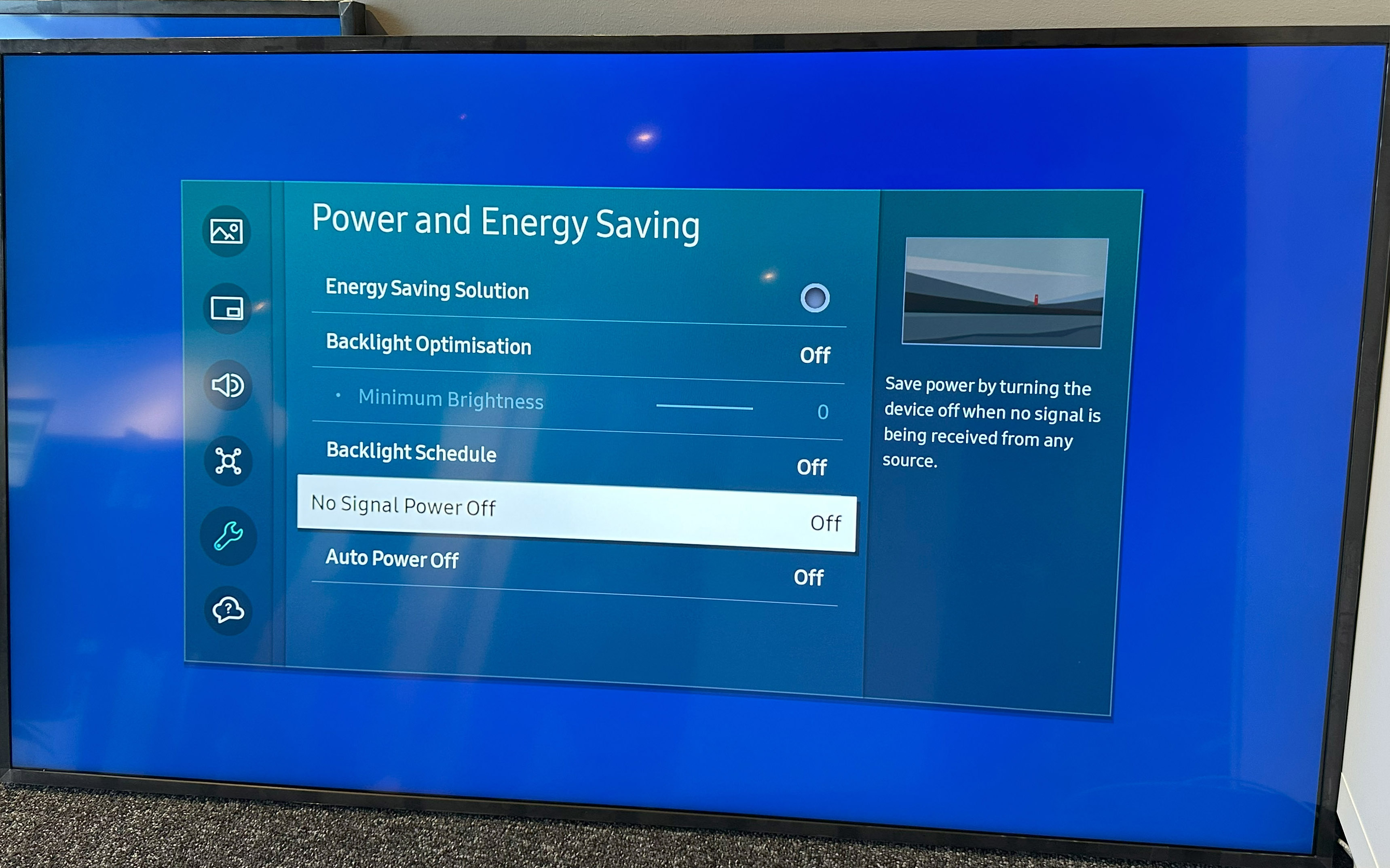
No Signal Power Off: Off
We recommend setting the on time to slightly before to opening time.
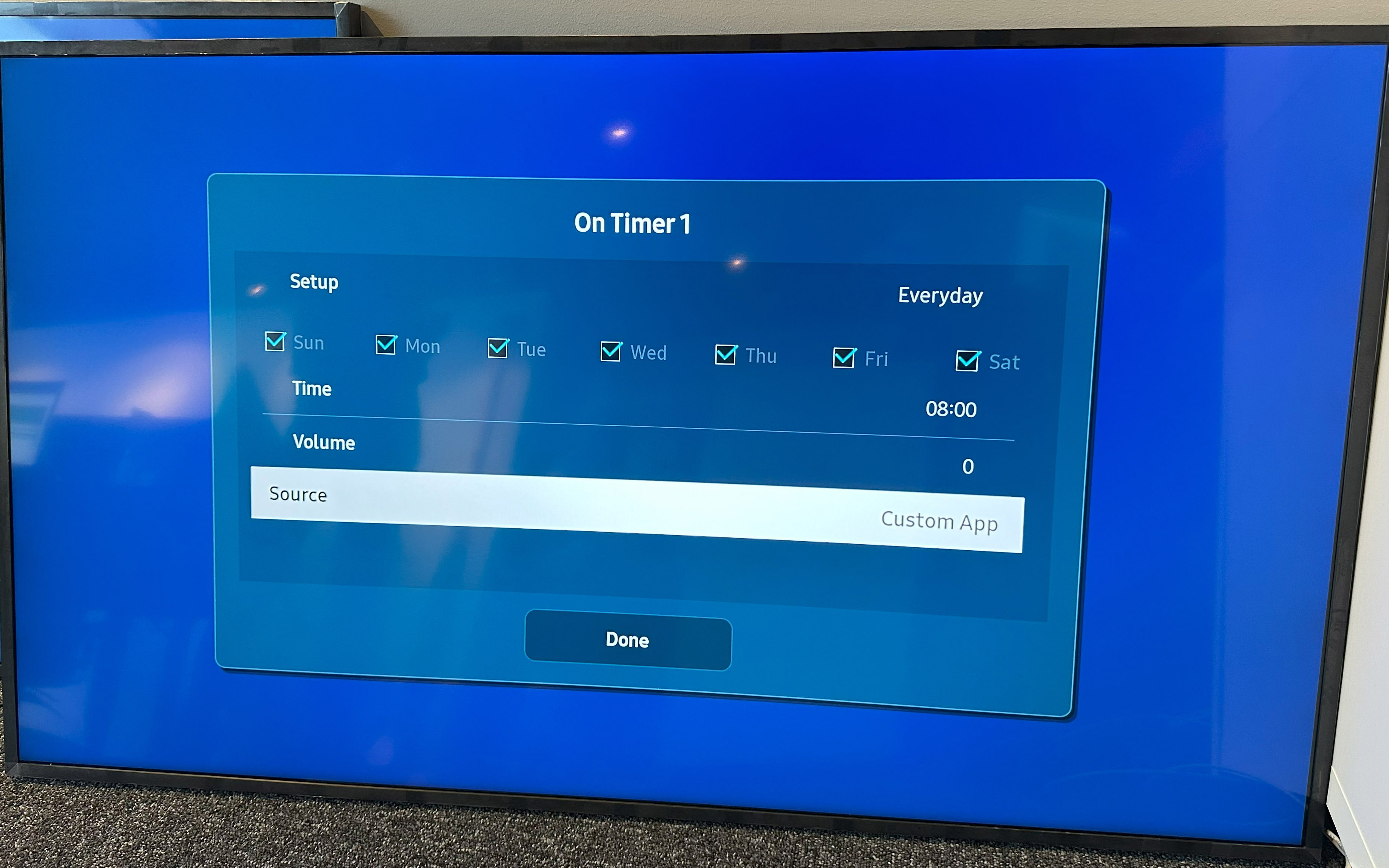
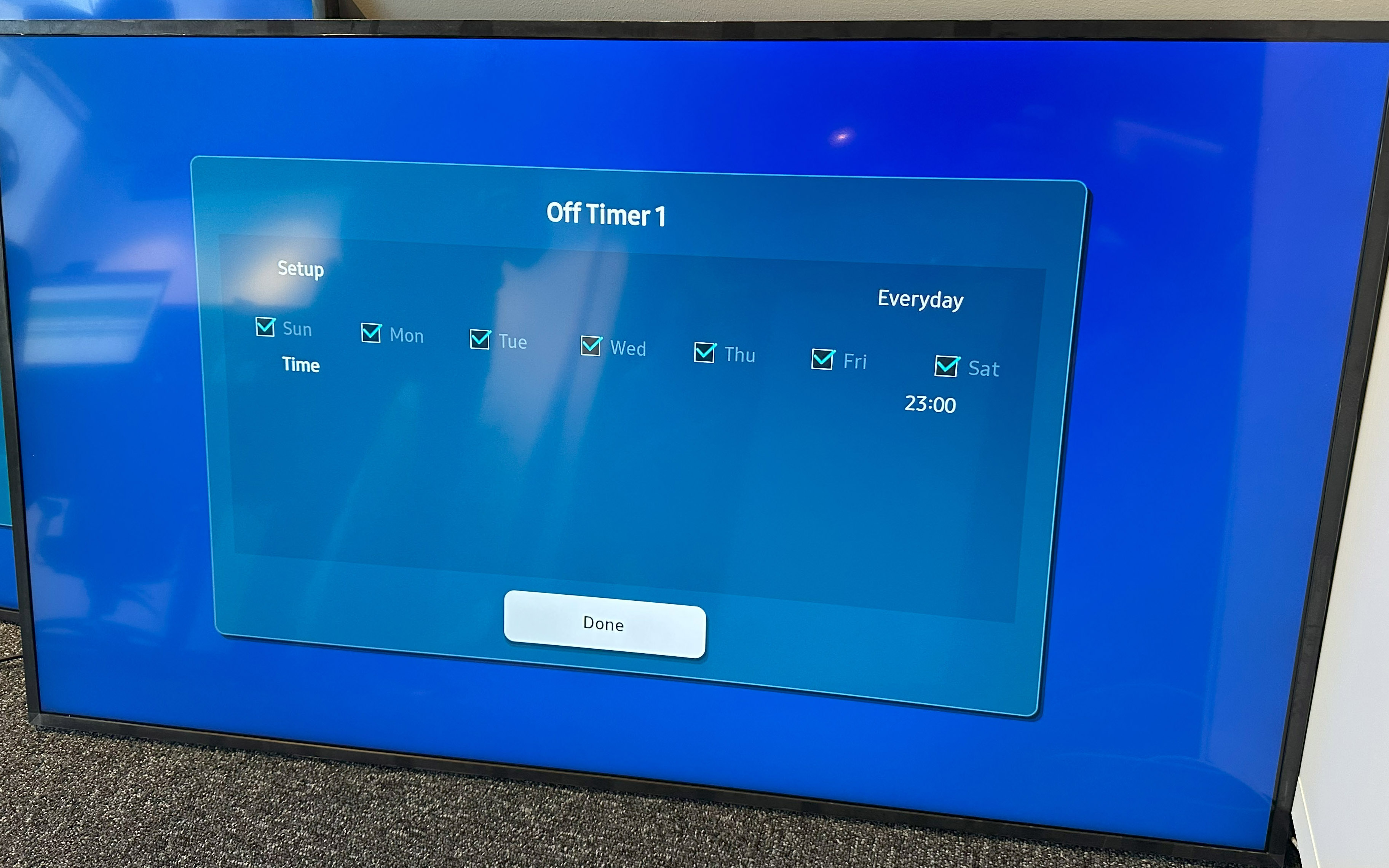
Off timer we recommend to set at closing time.